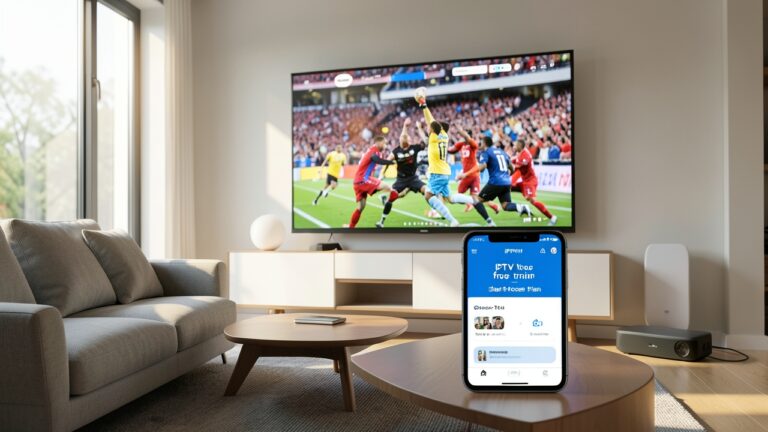

Fix IPTV buffering UK problems by checking the connection, device and player before assuming the stream itself is the cause. Buffering can happen for several reasons, and the quickest solution depends on when and where the freezing occurs.
If IPTV works for a few minutes and then pauses, or live channels keep loading during busy periods, use the checklist below. It is designed for common UK home setups including Smart TVs, Fire TV devices, Android TV boxes and other streaming devices.
Why does IPTV keep buffering?
Buffering happens when the player cannot receive enough data quickly enough to continue playback. A weak Wi-Fi signal, network congestion, an overloaded device, a full app cache or a problem with the stream can all produce similar symptoms.
The most useful first step is to identify the pattern. If every channel buffers on one device, investigate the device or network. If only one channel buffers while others play normally, the issue may be limited to that stream.
1. Check your internet connection
Run a speed test on the same device you use for IPTV. Testing on a phone in another room can give a different result from the connection reaching your TV or streaming box.
For HD streaming, a stable connection matters more than a high headline speed. If several people are gaming, downloading large files or streaming video at the same time, available bandwidth can fall quickly.
2. Try Ethernet instead of Wi-Fi
If your TV or streaming device supports Ethernet, a wired connection is often the simplest troubleshooting step. It removes many of the signal and interference problems associated with Wi-Fi.
If Ethernet is not practical, move the router closer to the device and try the 5 GHz Wi-Fi band when available. The 5 GHz band can provide better performance nearby, while 2.4 GHz can be useful over longer distances.
3. Restart the router and streaming device
Restart both the router and the device running your IPTV player. A fresh connection can clear temporary network problems and stuck sessions.
Do not restart only the television if the actual IPTV app runs on a separate Fire TV Stick or Android box. Restart the device that is doing the streaming as well.
4. Clear the IPTV app cache
A large app cache can sometimes cause sluggish behaviour. Open your device settings, find the IPTV application and use the option to clear its cache if available.
Clear cache first rather than clearing all app data. Clearing data can remove saved settings, playlists or login details, so make sure you know your setup information before using that option.
5. Test another channel
This simple test is often overlooked. If one channel freezes while several others play smoothly, your home connection may not be the problem.
Try a few different channels and note whether the issue affects all of them or only a particular stream. If the same channel fails on more than one device and network, it is useful information to provide to support.
6. Check your IPTV player settings
Make sure you are using a current version of your IPTV player. Some players also provide decoder, playback or buffer settings. Avoid changing several advanced settings at once because it makes troubleshooting harder.
Change one setting, test playback for a few minutes and then decide whether the change helped. If it did not, return to the previous setting.
7. Watch for peak-time buffering
If IPTV is fine during the day but regularly buffers in the evening, compare your home network usage at the same time. Other household devices may be using more bandwidth, or the route to a particular streaming source may be congested.
Try the same channel on another connection where practical. This can help separate a local network problem from a wider streaming issue.
8. Keep your device updated
Install available updates for your Smart TV, Fire TV device, Android TV box and IPTV player. Older software can sometimes create playback or compatibility issues that look like network problems.
A quick IPTV buffering checklist
- Test the connection on the streaming device.
- Try Ethernet or a stronger 5 GHz Wi-Fi connection.
- Restart the router and streaming device.
- Clear the IPTV app cache.
- Test several channels.
- Update the player and streaming device.
- Compare daytime and evening performance.
- If one stream fails everywhere, report that specific channel to support.
Need help with your IPTV setup?
Our IPTV Setup Guide covers the basic steps for getting started, while the FAQs can help with common questions. If you are comparing available options, see our pricing plans.
Final thoughts
When you want to fix IPTV buffering UK issues, avoid changing everything at once. Check the device connection first, then test another channel, clear the app cache and compare performance at different times. A structured approach usually makes it much easier to identify whether the problem is your network, device, player or the individual stream.