How to Customize Closed Captions on 4K Channels is the focus of this practical guide. The following sections explain useful options, key considerations and clear steps to help readers make an informed decision.
Why Customize Closed Captions on 4K Channels?
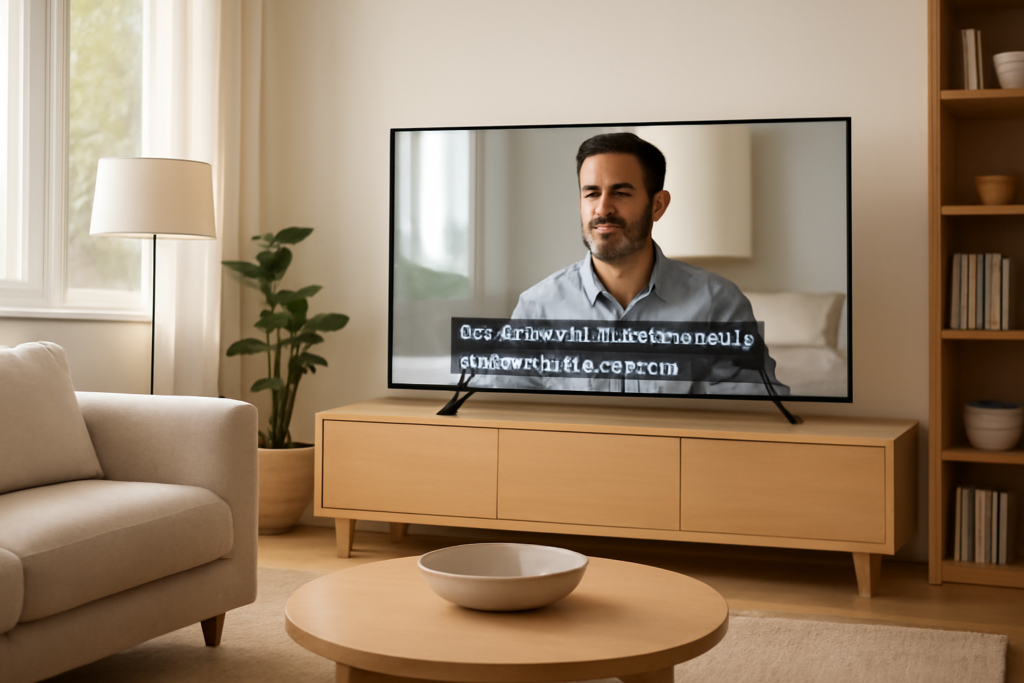
Closed captions are vital for many viewers, providing accessibility for those with hearing impairments and enhancing comprehension in noisy environments. On 4K channels, with their high-resolution displays, default captions might appear too small or visually distracting. Customizing closed captions improves readability and viewing comfort, allowing you to tailor text size, font, color, and background for your preferences.
Understanding Closed Caption Settings on Smart TVs with 4K Channels
Most modern smart TVs that support 4K channels have built-in closed captioning features accessible through the settings menu. These settings are often nested under accessibility or subtitle options. However, the range of customization varies by brand and model. Common adjustable elements include:
- Font size and style: Make captions larger or choose a clearer font for easier reading.
- Text color and opacity: Change the caption color and transparency to contrast better with video content.
- Background and window color: Add or adjust background color behind captions to improve visibility.
- Edge style: Options like drop shadow or outline enhance text distinction.
Before you begin, check your TV’s user manual or online support resources to locate the closed caption customization options specific to your device.
Step-by-Step: How to Customize Closed Captions on 4K Channels
- Access the Settings Menu: Using your smart TV remote, press the settings or gear icon to open the main menu.
- Navigate to Accessibility or Captions: Look for options labeled “Accessibility,” “Captions,” “Subtitles,” or “Closed Captions.”
- Enable Closed Captions if Disabled: Turn on captions if they are currently off.
- Open Caption Customization Options: Select “Caption Settings,” “Text Options,” or a similar submenu to reveal customization features.
- Adjust Font Size and Style: Choose a font size that suits your viewing distance and font style that enhances readability.
- Change Caption Colors: Pick a text color and background that stand out clearly against your typical 4K content.
- Set Background and Edge Styles: Enable background color or windows behind text and add outlines or shadows to improve visibility.
- Preview and Save Settings: Use available preview features to confirm your changes before exiting.
Note that some 4K streaming apps or IPTV services may have their own caption settings independent of your TV. In those cases, customize captions within the app if available to ensure consistent appearance.
Tips for Effective Caption Customization on 4K Displays
- Consider Viewing Distance: Larger fonts are necessary for couches or rooms where you sit far from the screen to maintain readability.
- Use High-Contrast Colors: White text on black or yellow backgrounds often provides the clearest contrast on bright 4K screens.
- Balance Caption Size and Screen Space: Captions that are too large can obscure too much video; adjust size for comfort without blocking important visuals.
- Test Across Different Content: Check your caption settings on various 4K channels and programs, since lighting and colors vary widely.
- Update TV Firmware: Ensure your smart TV’s software is current to access the latest caption customization features and fixes.
When Closed Caption Customization Is Limited
If your smart TV or 4K channel provider offers minimal or no options for caption adjustments, consider these alternatives:
- Use External Devices: Streaming devices like Roku, Apple TV, or Amazon Fire Stick often provide enhanced caption controls.
- Third-Party Apps: Some IPTV and streaming apps allow in-app caption customization overriding default TV settings.
- Contact Support: Reach out to your TV manufacturer or service provider to request better caption options or software updates.
Context: Getting 4K Channels on Your Smart TV
To enjoy customized closed captions on 4K channels, you first need access to 4K content. This might come from cable providers, IPTV services, or streaming platforms supporting 4K resolution. Many smart TVs have built-in apps or support for IPTV setups that enable viewing 4K channels. For guidance on IPTV setup and managing channel lineups, see How to Customize Your IPTV Channel List in the UK and Setting Up IPTV on Mobile Devices for UK Beginners.
Conclusion
Customizing closed captions on 4K channels transforms your viewing experience by making captions clear and comfortable to read, tailored to your environment and preferences. Explore your smart TV’s accessibility menus, adjust font styles, colors, and backgrounds, and test settings across different content. If your device limits these options, look to external streaming devices or apps for greater control. Effective caption customization ensures that 4K’s stunning visuals are complemented by accessible, easy-to-read text, enhancing entertainment for everyone.
FAQs About Customizing Closed Captions on 4K Channels
Can I customize closed captions on any 4K smart TV?
Most modern 4K smart TVs include basic caption customization, but options vary widely. Check your TV’s accessibility settings for available features.
Do IPTV services support closed caption customization?
Many IPTV apps offer in-app caption settings that can override default TV captions, providing more customization options.
Will customizing captions affect picture quality on 4K channels?
No, caption customization changes text display only and does not impact the video’s 4K resolution or quality.
Are there universal caption settings that apply to all apps and channels?
Caption settings on your smart TV typically apply system-wide, but some apps may have their own caption controls that can differ.
What if captions are not showing on my 4K channels?
Ensure captions are enabled in your TV or app settings. If problems persist, check the channel’s broadcast or streaming service for caption support.