A Beginner’s Guide to Setting Up IPTV at Home: Practical Guide
A Beginner’s Guide to Setting Up IPTV at Home introduces the essential steps and considerations for establishing IPTV services in your household. This guide covers equipment, subscriptions, and setup tips to help you enjoy IPTV smoothly and legally.
What Is IPTV and Why Set It Up at Home?
Internet Protocol Television (IPTV) delivers television content through internet networks instead of traditional satellite or cable signals. Setting up IPTV at home lets you access live TV, on-demand shows, and exclusive channels via your internet connection, often with more flexibility and a wider range of content options. IPTV can also offer interactive features such as pause, rewind, and fast-forward on live TV, making it a modern alternative to conventional broadcasting methods.
Essential Components for Your IPTV Setup
Before diving into setup, it’s crucial to understand the hardware and software elements involved:
- Internet Connection: A stable and reasonably fast broadband connection (usually at least 10 Mbps for HD streaming) is foundational to avoid buffering and interruptions. For 4K streaming, speeds of 25 Mbps or higher are recommended. Wired Ethernet connections generally provide more reliable performance than Wi-Fi, especially in busy households.
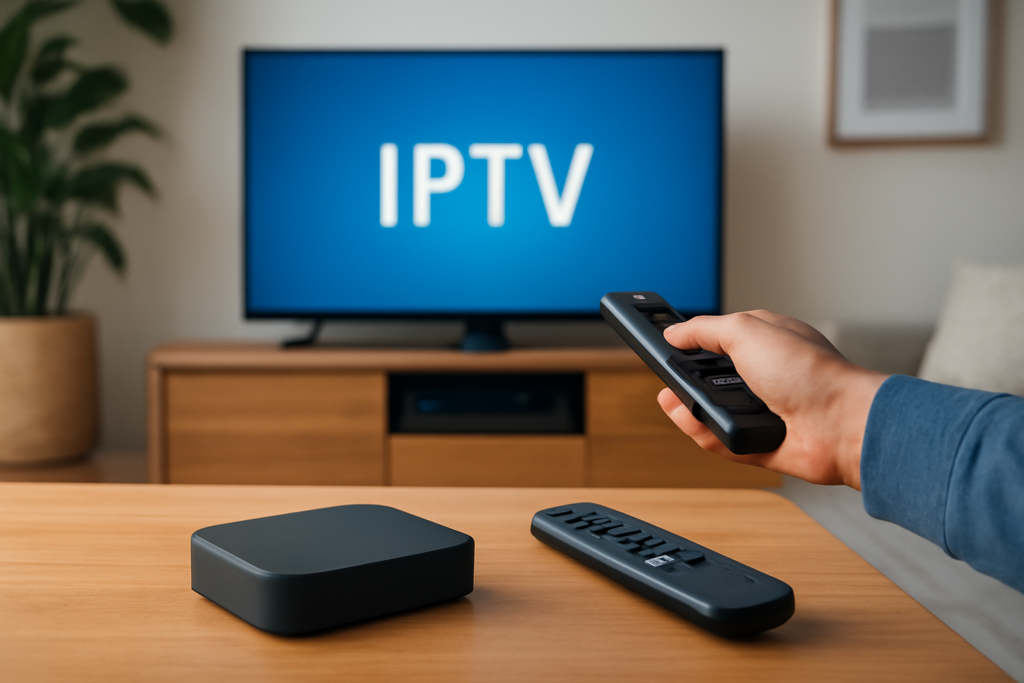
- Display Device: This can be a smart TV, a computer, a smartphone, or a streaming device like Amazon Firestick, Roku, or Android TV box. The choice depends on your viewing preferences and the compatibility of your IPTV provider’s apps.
- IPTV Subscription: Access to IPTV subscriptions provides the channel packages and streaming links. Choosing a reliable and legal provider ensures consistent service and access to authorized content. Many providers offer a variety of packages tailored to different interests and regions.
- IPTV Player App: Software or apps such as IPTV Smarters, VLC, or Perfect Player that can interpret IPTV streams and playlists. These apps allow you to load your subscription details, manage channels, and customize your viewing experience.
Step-by-Step: How to Set Up IPTV at Home
- Check Your Internet Speed and StabilityUse online speed tests (e.g., Speedtest.net) to verify your connection speed. For Full HD streaming, aim for 10–20 Mbps; for 4K content, 25 Mbps or higher is preferable. If you experience frequent buffering, consider switching from Wi-Fi to a wired Ethernet connection, which offers more consistent speeds and lower latency.
- Select a Suitable IPTV SubscriptionResearch IPTV providers carefully. Look for those with good reputations, positive user reviews, and clear information about their channel lineup and pricing. Many providers offer free trials or money-back guarantees—use these to test the service’s reliability, channel availability, and streaming quality before committing.
- Choose Your Playback DeviceIf you have a smart TV, check if your IPTV provider’s app is available on its app store. If not, devices like Amazon Firestick, Roku, or Android TV boxes can expand your options by allowing you to install IPTV player apps. For computers or smartphones, IPTV apps are widely available on Windows, macOS, Android, and iOS platforms.
- Install an IPTV Player AppDownload and install an IPTV app compatible with your device. Popular choices include IPTV Smarters, Perfect Player, TiviMate (for Android TV), and VLC Media Player. These apps support loading IPTV playlists (usually in M3U format) or portal URLs provided by your IPTV subscription.
- Load Your IPTV Subscription DetailsInput the IPTV subscription credentials, M3U playlist link, or portal URL into the player app. This information is typically provided by your IPTV service upon subscription activation. Some apps allow you to import playlists via URLs or upload files directly.
- Configure Settings for Optimal ViewingAdjust video quality settings if available to match your internet speed and device capabilities. Enable the Electronic Program Guide (EPG) feature to access channel schedules and program descriptions, enhancing your viewing experience. Set parental controls if you want to restrict access to certain content.
- Test Streaming and TroubleshootPlay several channels to ensure smooth streaming. If you experience buffering or lag, try switching to a wired connection, closing other bandwidth-heavy applications, or lowering the stream quality in the app settings. Restarting your router or streaming device can also resolve temporary issues.
Additional Setup Tips and Best Practices
- Use a VPN for Privacy and Access: A Virtual Private Network (VPN) can protect your privacy by encrypting your internet traffic. It may also help bypass ISP throttling that can slow down streaming services. However, ensure your IPTV provider allows VPN use and that it complies with legal regulations in your region.
- Keep Software Updated: Regularly update your IPTV player apps and device firmware to benefit from security patches, bug fixes, and new features.
- Explore Recording and Catch-Up Features: Many IPTV players support cloud DVR or local recording, allowing you to save shows for later viewing. Some services also offer catch-up TV, which lets you watch programs aired in the past few days.
- Backup Your Playlist and Credentials: Save your IPTV playlists, login details, and subscription information securely. This prevents setup hassles if you switch devices or need to reinstall apps.
- Optimize Your Home Network: If multiple users stream IPTV simultaneously, consider upgrading your router or using network extenders to improve Wi-Fi coverage and reduce congestion.
Common Questions When Setting Up IPTV at Home
Is IPTV Legal?
IPTV services that have proper licensing and operate within copyright laws are legal. Always verify the legitimacy of your IPTV subscription to avoid unauthorized content. Using unlicensed IPTV services can expose you to legal risks and poor-quality streams.
Can I Use IPTV on Multiple Devices?
Many IPTV subscriptions allow multiple simultaneous streams, letting families watch on different devices at the same time. Check your provider’s policy on multi-device usage and whether additional fees apply for extra streams.
What If My IPTV Streams Buffer Frequently?
Buffering often results from insufficient bandwidth, network congestion, or unstable connections. Solutions include upgrading your internet plan, switching to a wired Ethernet connection, closing background apps that consume bandwidth, or lowering the stream quality in your IPTV app settings.
Can I Record IPTV Content?
Some IPTV players and services offer recording features, either through cloud DVR or local storage on your device. Check if your IPTV provider supports this functionality and how to configure it within your player app.
Do I Need Special Hardware for IPTV?
No special hardware is required beyond a compatible device (smart TV, streaming box, smartphone, or computer) and a reliable internet connection. However, using a streaming device like Amazon Firestick or Android TV box can enhance compatibility and ease of use.
Conclusion
Setting up IPTV at home involves selecting the right internet plan, device, subscription, and player app, followed by careful configuration and testing. With the right approach, IPTV can provide a flexible, cost-effective alternative to traditional TV services, delivering a personalized and rich viewing experience. Take your time exploring options, test free trials, and ensure your setup matches your streaming needs. Remember to prioritize legal and reliable IPTV providers to enjoy uninterrupted and high-quality content safely.