How to Use Samsung Smart Hub for Accessing IPTV Content: Practical Guide
How to Use Samsung Smart Hub for Accessing IPTV Content is the focus of this practical guide. The following sections explain useful options, key considerations and clear steps to help readers make an informed decision.
Understanding IPTV on Samsung Smart TVs
Internet Protocol Television (IPTV) delivers TV content via internet networks rather than traditional broadcast or satellite methods. Samsung Smart TVs, equipped with the Smart Hub platform, provide a versatile home entertainment center where IPTV services can be accessed through compatible apps. Knowing how to use Samsung Smart Hub to access IPTV content unlocks a world of streaming options beyond conventional channels.
What Is Samsung Smart Hub and How Does It Support IPTV?
Samsung Smart Hub is the TV’s integrated platform for managing apps, streaming services, and connected devices. It offers a centralized interface to discover and launch apps, including IPTV players that can handle IPTV playlists and streams. While Samsung does not natively offer a built-in IPTV app, Smart Hub supports third-party IPTV apps that can be installed and used to stream IPTV channels.
Step-by-Step Guide: Accessing IPTV Content via Samsung Smart Hub
- Ensure Your Samsung Smart TV Is Connected to the InternetCheck your network settings to confirm your TV is online via Wi-Fi or Ethernet, as IPTV streaming requires a stable internet connection.
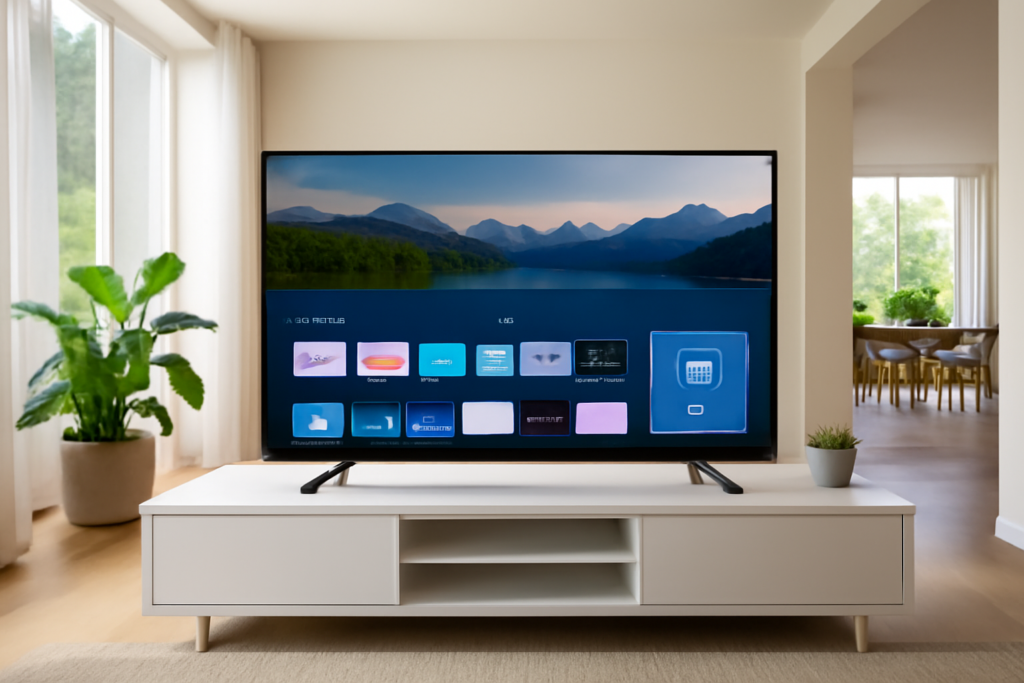
- Open Samsung Smart HubPress the Smart Hub button on your remote or access the Smart Hub menu from the TV’s home screen.
- Navigate to the Apps SectionWithin Smart Hub, select the Apps icon to browse available applications.
- Search for IPTV-Compatible AppsUse the search function to find IPTV players such as “Smart IPTV,” “SS IPTV,” or other popular IPTV clients compatible with Samsung TVs.
- Install the IPTV AppSelect the app and choose install. Wait for the process to complete before opening the app.
- Launch the IPTV App and Configure Your PlaylistMost IPTV apps require you to upload or enter an IPTV playlist URL (often in M3U format) or a portal address provided by your IPTV service provider.
- Start StreamingOnce configured, you can browse channels, VOD content, or other IPTV features through the app interface.
Choosing the Right IPTV App for Samsung Smart Hub
Samsung Smart Hub supports a variety of IPTV apps, but compatibility and features vary. Consider these key points when selecting an IPTV app:
- Playlist Support: Ensure the app accepts M3U playlists or Xtream Codes portals, the most common IPTV formats.
- Ease of Use: Look for apps with intuitive interfaces and channel navigation.
- EPG Integration: Electronic Program Guide (EPG) support improves channel browsing by showing schedules.
- Performance: Opt for apps with stable streaming and minimal buffering on Samsung Smart TVs.
Examples include Smart IPTV, a popular choice for Samsung TVs, and SS IPTV, which offers playlist customization and EPG support.
How to Manage IPTV Playlists on Samsung Smart Hub
IPTV playlists are central to your streaming setup. Here’s how to manage them effectively:
- Obtain a Valid Playlist URL: Your IPTV provider should supply a secure M3U URL or portal link.
- Upload or Enter the Playlist in the IPTV App: Depending on the app, you might upload the playlist file via USB or enter the URL directly.
- Regularly Update the Playlist: IPTV playlists can change; update them as recommended by your provider to avoid broken channels.
- Organize Channels: Some apps allow you to customize channel order or create favorites for quicker access.
Common Pitfalls and How to Avoid Them
Accessing IPTV on Samsung Smart Hub can encounter obstacles. Here are practical tips to mitigate common issues:
- App Compatibility: Not all IPTV apps support every Samsung TV model or firmware version. Verify compatibility before installation.
- Playlist Format Errors: Ensure playlists are correctly formatted and from a reliable source to avoid playback failures.
- Internet Speed: IPTV streaming demands consistent bandwidth—ideally 10 Mbps or higher for HD content—to prevent buffering.
- Firmware Updates: Keep your TV’s firmware up to date to maintain app compatibility and security.
- Legal Considerations: Always use IPTV services from legitimate providers to avoid copyright issues.
Enhancing Your IPTV Experience on Samsung Smart TVs
To get the most out of IPTV via Samsung Smart Hub:
- Use Ethernet When Possible: Wired connections offer more stable streaming than Wi-Fi.
- Leverage VPN Services: In some regions, VPNs help maintain privacy and access geo-restricted IPTV content.
- Explore Additional Apps: Combine IPTV with other streaming services available on Smart Hub for a diversified entertainment setup.
- Customize EPG: If your IPTV app supports it, configure the Electronic Program Guide for easier channel navigation.
Conclusion
Using Samsung Smart Hub to access IPTV content transforms your Samsung Smart TV into a flexible streaming device. By installing compatible IPTV apps, managing playlists carefully, and ensuring your network and TV software are optimized, you can enjoy a seamless IPTV viewing experience. Always choose trustworthy IPTV providers and apps to safeguard your entertainment quality and legality.