How to Set Up an IPTV Playlist on Your Laptop: Practical Guide
How to Set Up an IPTV Playlist on Your Laptop is the focus of this practical guide. The following sections explain useful options, key considerations and clear steps to help readers make an informed decision.
What Is an IPTV Playlist and Why Use It on Your Laptop?
An IPTV playlist is essentially a file or URL containing a curated list of television channels and streams delivered over the internet. Unlike traditional cable or satellite TV, IPTV (Internet Protocol Television) streams content using internet protocols, allowing for greater flexibility and customization. Setting up an IPTV playlist on your laptop enables you to access live TV, on-demand content, or niche channels without the need for physical hardware or subscription boxes.
Using a laptop for IPTV offers several advantages: portability, multi-tasking capabilities, and often superior control over playback settings compared to smart TVs or mobile devices. It also allows you to connect to external displays, use keyboard shortcuts, and manage multiple playlists or streams simultaneously.
Choosing the Right Software to Play IPTV on Your Laptop
To use an IPTV playlist, you need compatible media player software that supports IPTV playlist formats, primarily M3U files or URLs. Here are some of the best options:
- VLC Media Player: A free, open-source player available on Windows, macOS, and Linux. VLC supports a wide range of formats and protocols, including IPTV streaming via M3U playlists. Its straightforward interface and robust codec support make it a popular choice.
- IPTV Smarters Pro: Designed specifically for IPTV, this app offers a polished interface with features like multi-screen support, parental controls, and EPG (Electronic Program Guide) integration. It’s often used with commercial IPTV services and supports Windows and macOS.
- Simple IPTV Player: A lightweight and easy-to-use player focused on basic IPTV playback without unnecessary features. Ideal for users who want a minimalistic experience.
- Kodi: A powerful open-source media center that can be extended with IPTV add-ons. Kodi supports EPG integration, recording, and advanced playlist management, making it suitable for users seeking a comprehensive media solution.
Installing one of these players prepares your laptop to handle IPTV playlists efficiently.
How to Obtain a Valid IPTV Playlist
IPTV playlists come in various forms, and obtaining a reliable one is crucial for a smooth viewing experience:
- Free IPTV Playlists: These are publicly available playlists shared online. While they can be useful for testing, they often suffer from instability, limited channel selection, and frequent downtime.
- Subscription-based Playlists: Offered by legitimate IPTV providers, these playlists usually come with guaranteed uptime, better channel variety, and legal compliance. Subscriptions often include EPG data and customer support.
- Self-created Playlists: Advanced users or organizations may create their own playlists by aggregating streams from various sources or running private IPTV servers. This approach requires technical knowledge but offers full control.
Important: Always ensure that the IPTV playlist you use complies with copyright laws and is sourced from trustworthy providers to avoid legal issues and security risks.
Step-by-Step Setup: Loading an IPTV Playlist on Your Laptop
- Install your chosen IPTV player: Download and install software like VLC Media Player or IPTV Smarters Pro from their official websites to avoid malware or fake versions.
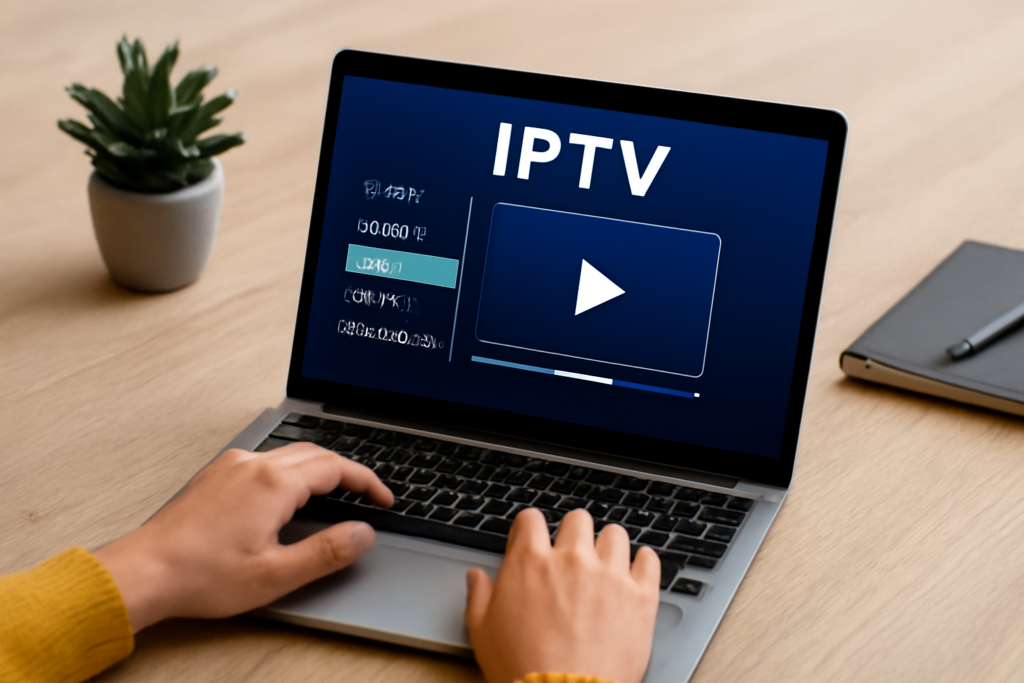
- Obtain the IPTV playlist URL or file: This will usually be an M3U file or a URL provided by your IPTV service. Save the file locally or copy the URL to your clipboard.
- Open the playlist in the player:
- In VLC, go to Media > Open Network Stream and paste the playlist URL, or use Open File to load a local M3U file.
- In IPTV Smarters Pro, use the Add Playlist option and enter your playlist URL or upload the file.
- For Kodi, install the PVR IPTV Simple Client add-on, then configure it by entering your M3U playlist URL under the add-on settings.
- Wait for channels to load: The player will parse the playlist and display the available channels or streams. This may take a few moments depending on playlist size and internet speed.
- Select a channel and start watching: Click on any channel to begin streaming live or on-demand content.
Note that interfaces vary slightly between players, but the core process remains consistent.
Tips for Smooth IPTV Streaming on Your Laptop
- Ensure a stable internet connection: IPTV streaming requires consistent bandwidth. Prefer wired Ethernet connections over Wi-Fi for reduced latency and buffering.
- Update your IPTV player regularly: Software updates often fix bugs, improve compatibility, and enhance security.
- Use a VPN if required: Some IPTV services or channels may restrict access by geographic location. A reputable VPN can help you bypass these restrictions responsibly, but always check local laws and service terms.
- Manage playlists carefully: Regularly remove dead or outdated streams to reduce buffering and simplify navigation.
- Consider EPG support: Electronic Program Guides provide schedules and program information. Some players allow you to load EPG XML files or URLs alongside your playlist for a richer experience.
- Optimize player settings: Adjust buffering times and video output settings in your player to balance latency and smooth playback.
Common Issues and How to Troubleshoot Them
While setting up IPTV playlists, you might encounter some common problems:
- Playback errors or excessive buffering: Check your internet speed using speed test tools. Close other bandwidth-heavy applications and consider switching to a wired connection.
- Playlist not loading or missing channels: The playlist may be outdated, corrupted, or temporarily offline. Try reloading the playlist or sourcing a fresh one from your provider.
- Unsupported formats: Confirm your player supports the playlist format and streaming protocols. Switching to a more compatible player like VLC or Kodi can help.
- Geoblocking issues: If channels are blocked in your region, a VPN may help. However, ensure you comply with legal and service provider restrictions.
- Audio/video sync problems: Adjust player audio delay settings or try a different media player.
Why Setting Up IPTV on a Laptop Is Advantageous
Laptops combine portability with powerful hardware, making them ideal for IPTV streaming. Unlike smartphones or tablets, laptops offer larger screens and the ability to connect to external monitors or projectors. The presence of physical keyboards and mice enables easier navigation and playlist management.
Additionally, laptops generally have better processing power and memory, which helps in decoding high-definition streams smoothly. This is especially beneficial when watching multiple streams or using advanced IPTV features like recording and EPG integration.
Moreover, laptops allow you to multitask effectively—watch IPTV while browsing the web, chatting, or working. This flexibility is unmatched by most smart TVs or dedicated IPTV boxes.
FAQs About Setting Up IPTV Playlists on Your Laptop
Is it legal to use IPTV playlists?
Using IPTV playlists is legal if the content is licensed or you have permission from the content owners. Avoid unauthorized or pirated IPTV services to stay compliant with copyright laws.
Can I watch IPTV playlists offline?
No, IPTV relies on internet streaming, so a live connection is necessary. However, some IPTV players or services may offer recording features to save content for offline viewing.
What internet speed do I need for IPTV?
For standard definition streams, a minimum of 5 Mbps is recommended. For HD content, 10 Mbps or higher ensures smooth playback. Ultra HD (4K) streams require 25 Mbps or more.
Can I use multiple IPTV playlists simultaneously?
Yes, many IPTV players allow you to load and switch between multiple playlists. This is useful if you subscribe to different providers or want to organize channels by category.
How do I update my IPTV playlist?
If your IPTV provider offers updated playlists, replace the old M3U file or URL with the new one in your player. Some apps support automatic updates if configured.
Further Reading and Related Guides
- Using IPTV for Educational Content on UK Laptops: How-To
- How to Customize Your IPTV Channel List in the UK
- Troubleshooting Common IPTV Streaming Issues at Home
Conclusion
Setting up an IPTV playlist on your laptop combines the convenience of internet-based television with the flexibility of a portable device. By selecting a suitable media player, sourcing a valid and legal playlist, and following straightforward setup steps, you can enjoy a wide range of live and on-demand content tailored to your preferences. Maintaining a stable internet connection, keeping your software updated, and managing your playlists carefully will ensure the best possible viewing experience. Whether for entertainment, education, or niche interests, IPTV on your laptop is a versatile and powerful solution.