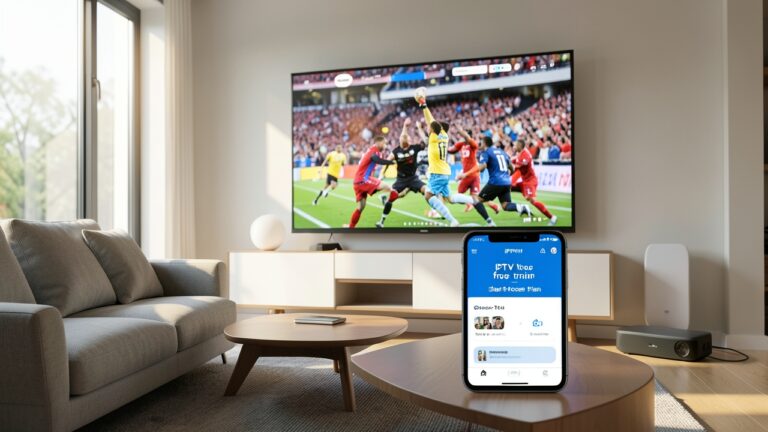
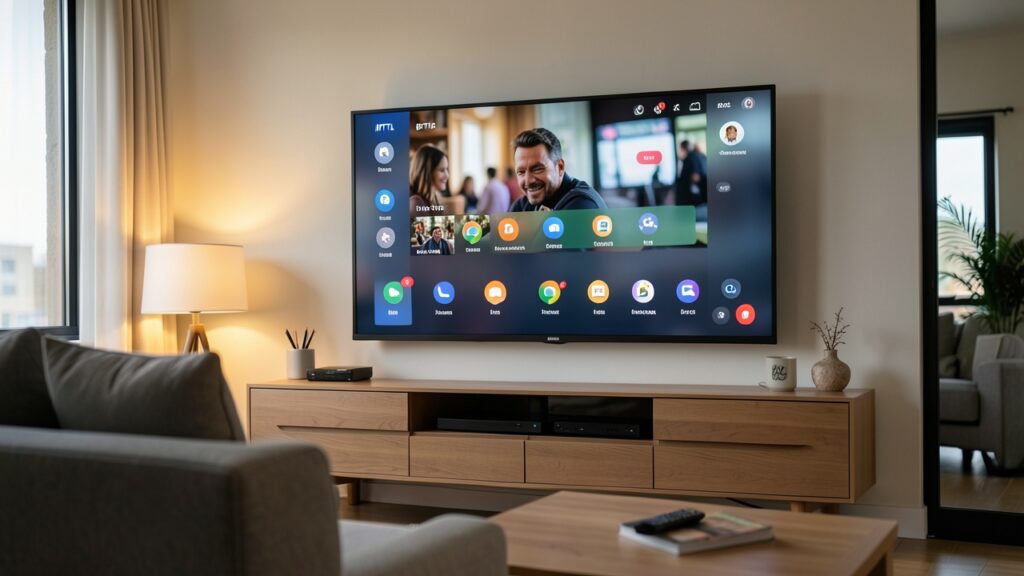
IPTV (Internet Protocol Television) lets you stream live channels, on‑demand movies and series over your home internet connection. With most modern smart TVs, you don’t need an external box – the TV’s built‑in app store and network capabilities are enough to enjoy a full‑featured IPTV experience. This guide walks you through the entire process, from choosing the right app to fine‑tuning settings for smooth playback.
Why Use IPTV on a Smart TV?
Smart TVs combine a high‑resolution display with an integrated operating system (such as Tizen, webOS or Android TV). Using IPTV directly on the TV offers several advantages:
- Convenience: No extra hardware, just a few clicks.
- Unified Remote: Control everything with the TV remote or voice assistants.
- Better Integration: EPG (Electronic Program Guide) data can appear alongside native channels.
Before You Begin: What You’ll Need
- A stable broadband connection (minimum 5 Mbps for HD, 15 Mbps for 4K).
- A subscription or legally obtained IPTV playlist (M3U or Xtream‑Codes format).
- The smart TV itself, updated to the latest firmware.
- Optional: a VPN if your ISP throttles streaming traffic.
Step 1: Choose a Compatible IPTV App
Not every app works on every TV platform. Below are the most reliable choices for the major operating systems:
- Android TV / Google TV: IPTV Smarters Pro, OTT Navigator, or Smart IPTV. These apps support M3U playlists, Xtream‑Codes login and EPG import.
- Samsung Tizen: Smart IPTV (official Tizen version) and SS IPTV.
- LG webOS: SS IPTV and IPTV Smarters (via the LG Content Store).
If you own an Android‑based TV, the Android TV & Google TV Apps for IPTV in the UK: Setup and Safety Guide provides a deeper comparison of each option.
Step 2: Install the App
Open your TV’s app store, search for the chosen app, and select “Install.” The process is similar to installing any other streaming app:
- Navigate to Apps or Store from the home screen.
li>Enter the app name in the search bar.
li>Select the correct listing (check the developer name to avoid clones).
li>Click Install and wait for the download to finish.
Step 3: Add Your IPTV Playlist
Once the app is installed, you’ll need to load your playlist. There are two common formats:
- M3U URL: A direct link to a plain‑text playlist file.
- Xtream‑Codes credentials: Username, password and server URL.
In the app’s main screen, look for “Add Playlist,” “Import URL,” or “Login.” Enter the required information and save. If the playlist includes an EPG, the app will usually detect it automatically.
Step 4: Optimize Network Settings
Streaming quality depends heavily on your network. Follow these tips for the best performance:
- Connect the TV via Ethernet whenever possible – it reduces latency and avoids Wi‑Fi interference.
- If you must use Wi‑Fi, place the router within 5‑10 feet of the TV and use a 5 GHz band.
- Enable QoS (Quality of Service) on your router and prioritize the TV’s MAC address.
- Consider a VPN if you notice buffering during peak hours; see ISP Throttling and VPNs in the UK: What Streaming Users Should Know for configuration advice.
Step 5: Configure the EPG (Electronic Program Guide)
A good EPG makes navigation feel like traditional broadcast TV. If your playlist does not include an EPG, you can import one manually:
- Find a reliable EPG source (many providers supply a separate XML file).
- In the app settings, locate “EPG Import” or “XMLTV URL.”
- Paste the URL and save. The guide may take a few minutes to populate.
For a detailed walkthrough, refer to the IPTV EPG Guide UK.
Step 6: Test Playback and Adjust Settings
Open a channel and watch for at least 30 seconds. If you notice stuttering or long start‑up times, try the following:
- Lower the stream quality (most apps let you switch between 1080p, 720p and 480p).
- Enable “Hardware Decoding” in the app’s video settings.
- Clear the app cache via the TV’s system settings.
Persistent buffering issues are covered in Fix IPTV Buffering UK.
Step 7: Secure Your Setup
Because IPTV relies on internet connections, it’s wise to protect your account:
- Use a strong, unique password for your IPTV service.
- Enable two‑factor authentication if the provider offers it.
- Regularly update the IPTV app and your TV’s firmware to patch security vulnerabilities.
Conclusion
Setting up IPTV on a smart TV is straightforward once you have the right app, a stable network and a valid playlist. By following the steps above, you’ll enjoy live channels, on‑demand content and a familiar EPG without extra hardware. Remember to keep your software updated and monitor your connection for the best experience.
Frequently Asked Questions
Can I use a free IPTV playlist?
Free playlists exist, but they often have limited channels and may be unreliable. For consistent quality, a reputable subscription service is recommended.
Do I need a VPN for IPTV?
A VPN helps if your ISP throttles streaming traffic or if you travel abroad and want to keep your home playlist accessible. See the VPN guide linked above for setup tips.
Will IPTV work on older smart TVs?
Older models may not support the latest apps. In that case, an external Android TV box or Amazon Fire TV stick can provide the needed platform.
How do I update the channel list?
Most apps let you refresh the playlist manually or set an automatic refresh interval in the settings.
Is it legal to use IPTV?
Legal status depends on the source of the streams. Use only services that have the right to distribute the content in your region.